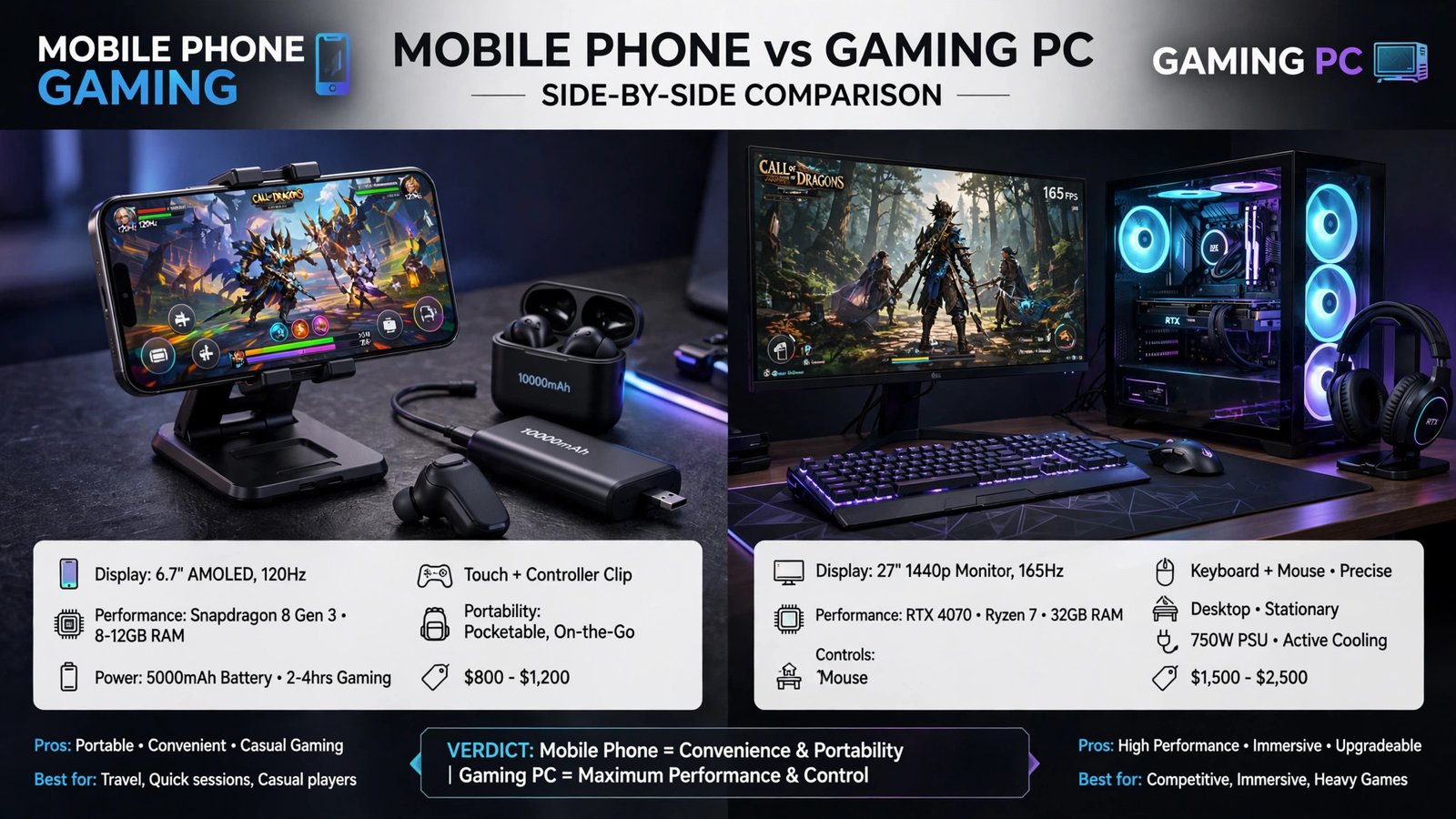
If you need to fix game stuttering, you are dealing with sudden frame drops, freezes, or uneven motion that makes even a favorite game feel frustrating. Stuttering is not the same as a low average frame rate: a game can report high FPS yet still hitch when assets load, drivers struggle, or hardware throttles. This guide explains how to fix game stuttering on Windows with ten practical steps, from drivers and settings to storage, cooling, and power options. For more PC help, visit Techvera.
Fix Game Stuttering: Understand the Common Causes
Before you change settings at random, it helps to know what can cause stuttering. Outdated or corrupted graphics drivers, insufficient RAM or video memory, high CPU or GPU usage, too many background applications, and games installed on a slow or nearly full drive are common culprits. Overheating, incorrect graphics settings, shader compilation, and Windows updates or background processes can also interrupt smooth play. Identifying the pattern matters: stuttering in new areas points to asset loading, drops after several minutes suggest heat, and problems in only one game suggest a game-specific bug or configuration issue. Use that clue to choose the right fix first.
Fix Game Stuttering: Update Graphics Drivers
Graphics drivers let Windows and games communicate correctly with your graphics card, so outdated or corrupted drivers are a frequent cause of hitching. Identify your card in Task Manager or Device Manager, then visit the official NVIDIA, AMD, or Intel website, download the driver for your card and Windows version, install it, and restart your computer. You can also check Windows Update for driver updates. If stuttering starts immediately after a new driver, consider rolling back to a previous stable version, because a fresh release can occasionally introduce compatibility problems. Keep a note of the driver version that worked best, so you can compare if problems return.
Fix Game Stuttering: Close Background Apps and Lower Settings
Background applications consume CPU, RAM, and storage resources that your game needs. Before launching a game, close unnecessary browser tabs, video apps, and launchers you are not using, and check Task Manager with Ctrl, Shift, and Esc to see which processes use the most CPU, memory, disk, or GPU. Do not end unfamiliar Windows processes or security software simply to free resources. Next, lower demanding graphics settings one or two at a time, starting with shadow quality, ambient occlusion, reflections, volumetric effects, ray tracing, and view distance. Reducing resolution or enabling supported upscaling, such as NVIDIA DLSS, AMD FSR, or Intel XeSS, can also smooth frame delivery without making the game look drastically worse.
Fix Game Stuttering: Use Game Mode and Check Temperatures
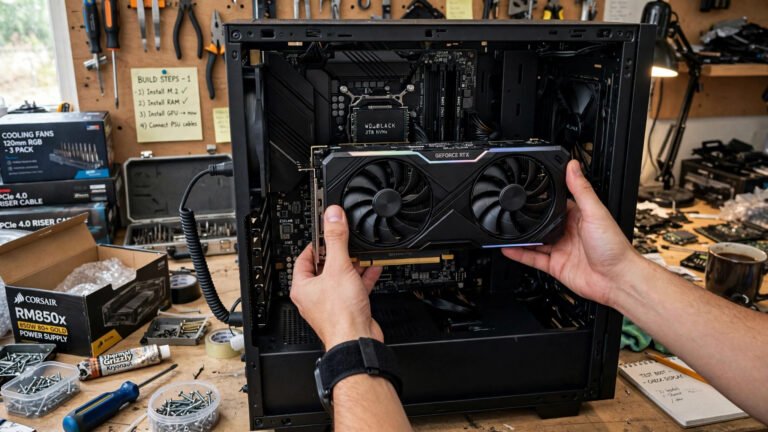
Windows Game Mode helps prioritize gaming activity and reduce interference from certain background tasks. Open Windows Settings, select Gaming, choose Game Mode, and turn it on, then test whether frame delivery feels more consistent. Heat is another hidden cause: when a processor or graphics card gets too hot, it reduces speed to protect itself, which shows up as worsening performance after several minutes. Keep air vents clear of dust, ensure good airflow, confirm cooling fans work, and avoid blocking laptop ventilation openings. Monitor temperatures with a reputable hardware utility, and if temperatures stay unusually high, inspect cooling or seek professional help rather than pushing unstable overclocks.
Fix Game Stuttering: Move Games to an SSD and Adjust Power
Storage speed affects loading and, in some games, smoothness when new areas stream in. If your PC has an SSD, install frequently played games on it, keep enough free space, and remove unnecessary files first. An SSD does not guarantee higher average FPS, but it can reduce loading hitches and asset-streaming pauses compared with a slow hard drive. Power settings also matter, especially on laptops: on Windows 11, open Settings, System, then Power and battery, and choose a performance-oriented power mode, while Windows 10 users can check Power Options in Control Panel. Laptop gamers should connect the charger when gaming if the manufacturer recommends it, because battery-saving modes can limit CPU and GPU performance.
Fix Game Stuttering: Disable Overlays, Update Windows, Verify Files
Game overlays and background recording can conflict with games or increase resource use. Try disabling unnecessary overlays one at a time, including launcher overlays and Windows Game Bar recording, then restart the game and compare results. You do not need to disable every overlay permanently; keep features you actually use if they do not affect performance. Windows updates can include compatibility and driver fixes, so open Settings, select Windows Update, check for updates, install them, and restart. If only one game stutters, verify its installation files through its launcher, because corrupted files, outdated versions, or incomplete updates can cause unexpected problems. For storage advice, see our guide on SSD vs HDD for gaming, and check official driver guidance on Microsoft Support.
Fix Game Stuttering: Check RAM and Remove Unstable Overclocks
Modern games need substantial memory, especially with other applications running. Check memory use in Task Manager while playing, close unnecessary apps, and consider a RAM upgrade if memory is consistently nearly full. If you recently overclocked your CPU, GPU, or RAM, return to stable default settings to test whether instability is causing hitches. An FPS limiter can also help by making frame delivery more consistent and preventing your system from constantly switching between very high and very low frame rates. Use the symptom table in your mind: high CPU use suggests a bottleneck or background tasks, high GPU use suggests settings are too demanding, freezes in new areas suggest shader or asset loading, and drops after minutes suggest heat. Treat these as clues, not definitive diagnoses, because several problems can occur together.
Conclusion: Fix Game Stuttering Without a Costly Upgrade
To fix game stuttering, start with the cheapest and most likely causes: update drivers, close background apps, lower demanding settings, enable Game Mode, and check temperatures. Then test storage, power, overlays, Windows updates, and game files, and only consider hardware upgrades if memory, storage, or graphics capability is clearly the bottleneck. Work through one change at a time and test after each step, so you know what actually helped. With a systematic approach, most Windows stuttering can be reduced or removed without buying new hardware, leaving you with smoother, more consistent gameplay.
About the Author

1 thought on “How to Fix Game Stuttering on Windows: 10 Effective Solutions”