
If you want to improve gaming performance on Android, you do not need a new phone to start. Most lag, stutter, and slow loading come from a handful of settings, background apps, heat, storage, and network problems that you can fix in minutes. This guide walks through practical changes in a sensible order, so you can test each one and keep only what helps your games run smoother.
For more everyday gaming help, visit the Techvera homepage, and if your phone also runs hot or shuts games down, read How to Save Battery While Playing Mobile Games for power and cooling tips.
Improve Gaming Performance on Android by Closing Background Apps
Apps running in the background compete for memory, processor time, and sometimes data. Before a demanding session, close social apps, browsers, and streaming apps you do not need. Check battery or app settings to spot anything using a lot of power in the background. Avoid aggressive task-killer apps, though: Android already manages memory, and repeatedly forcing apps closed can cause them to restart and use even more resources.
Improve Gaming Performance on Android With Game Mode
Many Android phones include a built-in game mode, game booster, or gaming app, though the name differs by brand. These tools can block notifications, improve touch response, limit background activity, monitor temperature, and give quick access to useful settings. Open your phone settings and search for the gaming feature, then turn it on for the titles you play most. Results vary by device and game, so test it for a few sessions before deciding whether it helps.
Improve Gaming Performance on Android by Adjusting Graphics Settings
High graphics look great, but they demand far more from the processor and graphics chip. If a game stutters, drop quality from High to Medium or Low, reduce shadows, and turn down heavy effects such as motion blur. Choose a frame rate your phone can hold steadily rather than the highest number on the menu. For competitive games especially, a stable frame rate matters more than extra visual polish, and a small visual sacrifice often removes most of the lag.
Improve Gaming Performance on Android by Keeping Software Updated
System updates often include bug fixes, driver improvements, and performance work that directly affects games, so do not postpone them for months. Check Settings for Software Update or System Update, and update your games through Google Play as well. Before a major update, make sure you have enough charge and free space, and use a stable connection so the download does not fail halfway through.
Improve Gaming Performance on Android by Freeing Up Storage
When internal storage is nearly full, phones can slow down, struggle to install updates, and load games more slowly. Remove apps you no longer use, delete old downloads, and back up photos and videos before removing local copies. Use your phone’s built-in storage tools to find large files. Be careful not to delete unfamiliar system files, and remember that clearing a game’s storage is different from clearing its cache: storage clearing can remove saved progress unless it is backed up online.
Improve Gaming Performance on Android With a Better Connection
Online games need a steady connection, and a weak signal shows up as high ping, rubber-banding, and delayed actions. Play on stable Wi-Fi when you can, move closer to the router, and pause large downloads or streaming during a match. If your game lets you pick a server, choose the closest one. Remember that ping and frame rate are different problems: if the picture is smooth but actions arrive late, fix the network; if the picture itself stutters, fix the device settings.
Improve Gaming Performance on Android by Preventing Overheating
Heat is one of the most common reasons performance drops during long sessions. As a phone gets hot, it throttles the processor to protect itself, and frame rates fall. Play in a cool, ventilated room, keep the phone out of direct sunlight, and consider removing a thick case that traps heat. Take short breaks during long sessions, and avoid charging while playing a demanding game when possible, since fast charging adds more heat. If the phone feels excessively hot, stop and let it cool naturally.
Improve Gaming Performance on Android by Checking Power Settings
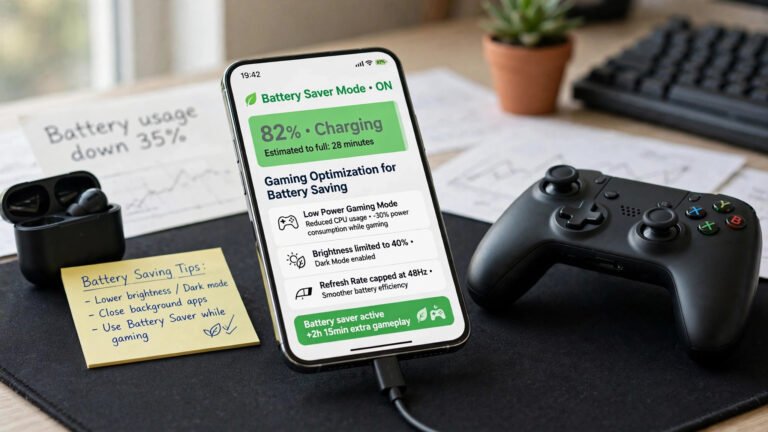
Battery-saving modes can limit background activity and, on some phones, cap processor performance. That is useful for battery life but bad for a demanding game. Before playing, check whether a power-saving mode is on, and switch to a balanced or performance mode if your phone offers one. Performance modes use more battery and create more heat, so balance the two: lower brightness or disable unneeded features for long sessions, and keep performance mode for shorter, competitive play.
Improve Gaming Performance on Android With the Right Refresh Rate
Phones with 90Hz or 120Hz screens can feel noticeably smoother, but only if the game supports that frame rate and the hardware can sustain it. Open display settings and look for Refresh Rate or Motion Smoothness, then try the higher setting for your favourite games. If battery life matters more, or a game still runs at 60 frames per second, returning to the standard rate is a sensible trade. The display setting alone cannot make a game render faster than the phone’s hardware allows.
Improve Gaming Performance on Android by Clearing Game Cache When Needed
Cache files help apps load faster, but damaged or outdated cache can cause crashes, odd behaviour, or slow loading. If one game misbehaves while others run fine, clearing only that game’s cache is worth trying. Go to Settings, then Apps, find the game, open Storage, and choose Clear Cache. Menu names vary by Android version and brand. Clearing cache does not delete your account progress in most online games, but the game may need to rebuild some files on the next launch.
Improve Gaming Performance on Android Without Booster Apps
Many third-party booster apps promise higher frame rates and instant RAM cleaning, but most add background services, adverts, and permissions while delivering little real benefit. Start with your phone maker’s own gaming tools and the in-game settings described above. Before installing any booster, check its developer, reviews, privacy policy, and permissions. Never install modified game files or unknown APK files to unlock performance features, since these can carry malware and get your account banned.
Improve Gaming Performance on Android by Restarting Regularly
A restart clears temporary software problems, stops stuck processes, and frees memory in one simple step. If you notice unexplained lag, crashes, or unusual battery drain, restart before changing lots of settings. It will not fix weak hardware permanently, but it is a fast first check that rules out temporary glitches. Many players find a restart every few days keeps the phone feeling more responsive overall.
Improve Gaming Performance on Android by Choosing Games That Fit Your Phone
Not every phone can run every demanding title at maximum settings, and that is normal. Before downloading, check the game’s minimum requirements and compatibility notes on Google Play. If a game offers several graphics presets, pick the one suited to your processor, memory, and Android version. Lighter games can still be excellent, and choosing a title your phone handles comfortably usually gives a better experience than forcing a heavy game to stutter.
Common Android Gaming Problems and Quick Fixes
Lag or low frame rate usually responds to lower graphics and fewer background apps. High ping responds to a better Wi-Fi signal or server choice. Overheating responds to breaks, ventilation, and lower settings. Slow loading often improves after freeing storage and updating the game. Frequent crashes may need a restart, an update, or a cache clear. Fast battery drain usually means lower brightness, calmer power settings, and fewer background tasks. Delayed touch response can come from game mode settings, screen settings, or a screen protector that interferes with input.
Frequently Asked Questions
How can I increase FPS on my Android phone?
Lower graphics quality, reduce demanding effects, close background apps, and use a stable frame rate your phone can hold. Those four changes solve most low frame-rate problems without any extra apps.
Does clearing RAM improve gaming performance?
Closing an app that is actively using a lot of resources can help, but constantly clearing all memory usually backfires because Android restarts apps. Focus on the heavy apps, not on emptying memory for its own sake.
Is Game Mode useful for Android gaming?
Yes, it can help by cutting interruptions, managing background activity, and putting gaming controls in one place. The benefit depends on the phone and the game, so test it rather than assuming it will transform performance.
Does charging while gaming reduce performance?
Charging alone does not automatically slow a game, but the extra heat can trigger throttling, which does. If performance drops while plugged in, unplug for a while or use a slower charge during play.
Can I improve gaming performance without buying a new phone?
Yes. Adjusting graphics, improving your network, freeing storage, updating software, controlling heat, and restarting regularly together make a real difference on most phones that are a few years old.
Conclusion
To improve gaming performance on Android, start by finding the actual bottleneck: graphics, heat, storage, connection, or background apps. Apply the matching fix, test it in a real game, and only then move to the next change. With the right settings and a little regular maintenance, most Android phones can deliver smoother, more reliable gaming without new hardware.
About the Author



1 thought on “How to Improve Gaming Performance on Android”